🎛️ Ribbon Visual Designer
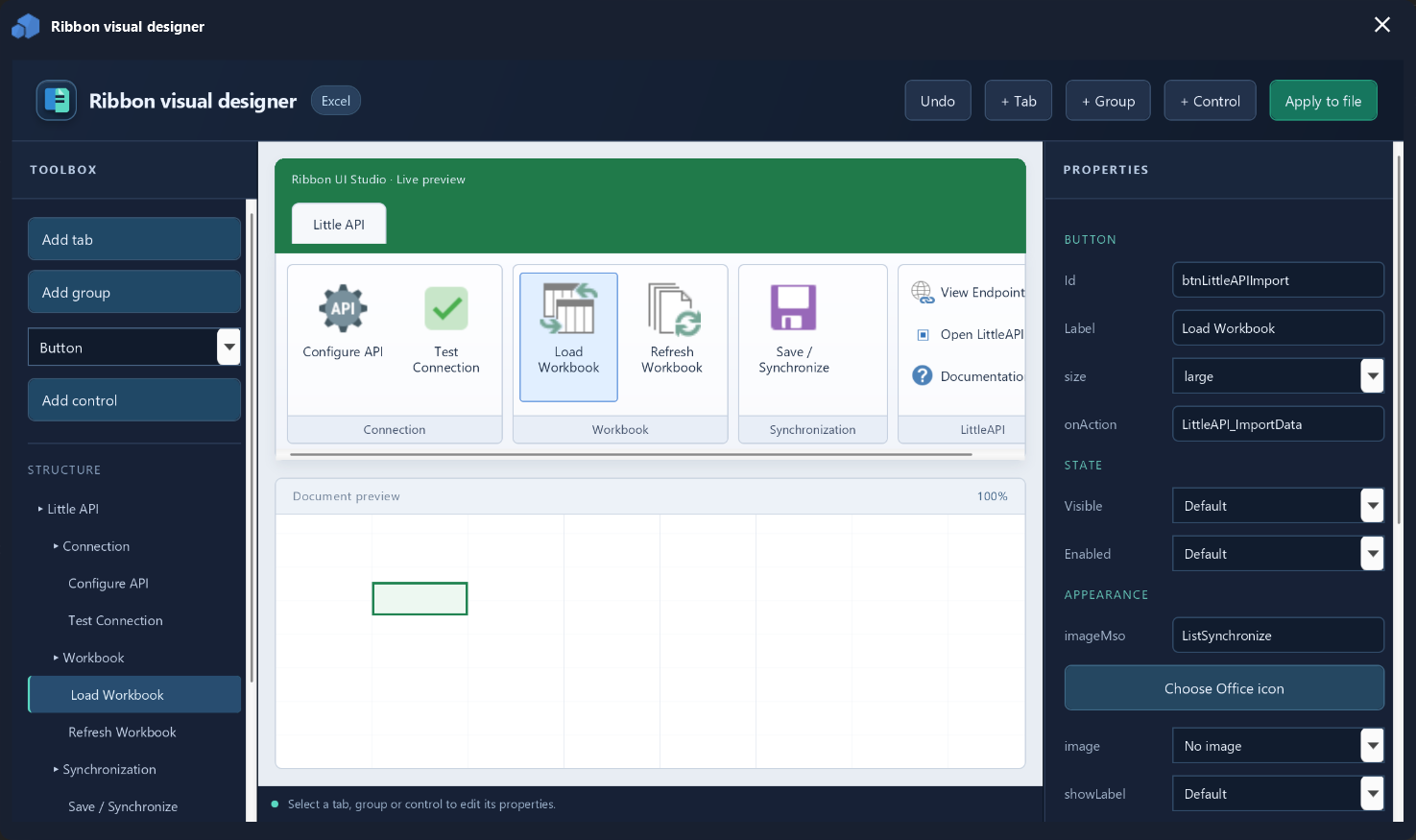
Structural designer with live preview, tree, toolbox, properties, imageMso, visible/enabled state and before/after placement. Apply to file writes the resulting RibbonX XML back to the Office file.
Official documentation · v4.0.0
A practical guide to editing customUI XML, working with VBA modules, checking callbacks, using imageMso, creating Excel, Word and PowerPoint add-ins, and packaging them for Windows.
Ribbon UI Studio v4.0.0
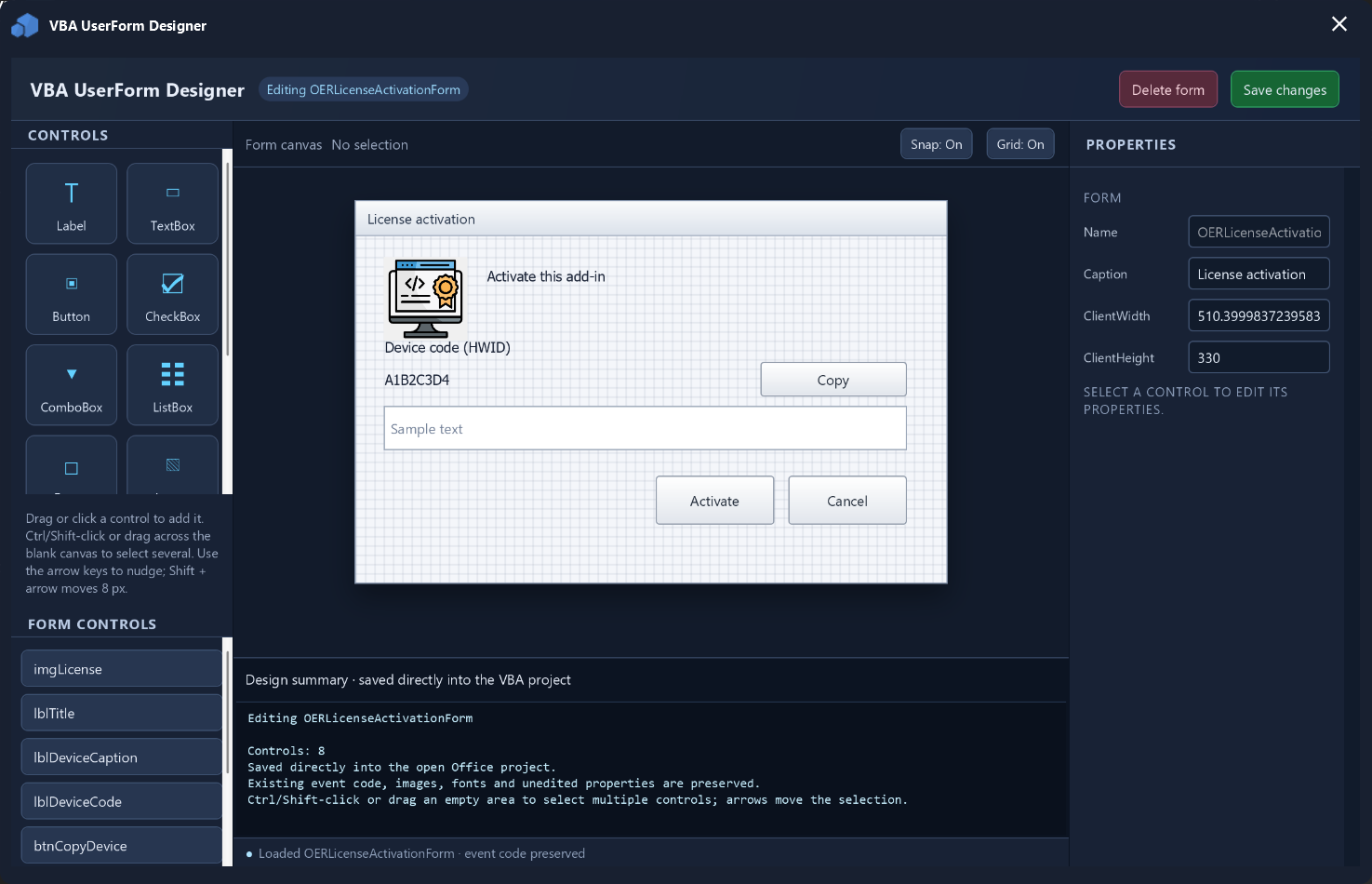
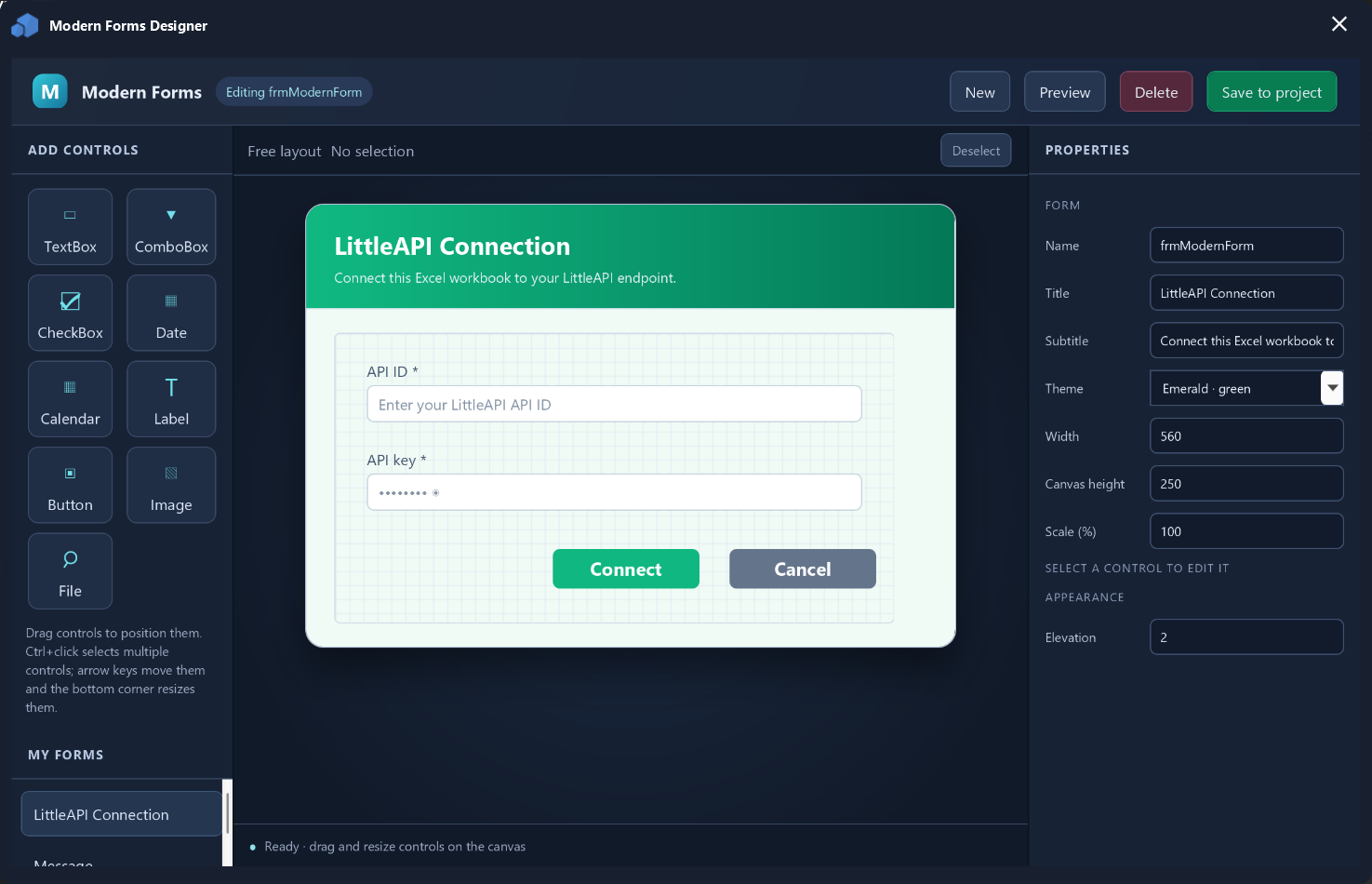
v4 expands Ribbon UI Studio with three visual areas: Ribbon design, native VBA UserForms and Modern Forms. The two form systems are different and should not be confused.
Structural designer with live preview, tree, toolbox, properties, imageMso, visible/enabled state and before/after placement. Apply to file writes the resulting RibbonX XML back to the Office file.
Works with native MSForms/VBA UserForms. It can create or edit classic forms while preserving existing event code and resources where supported.
Separate JSON-based system with its own runtime. Includes TextBox, ComboBox, CheckBox, Date, Calendar, File/Folder, Label, Image and Button plus themes, scale and elevation.
OER_ModernMsgBox keeps a VBA-friendly workflow for common button groups and results, with native MsgBox fallback when the modern runtime cannot be used.
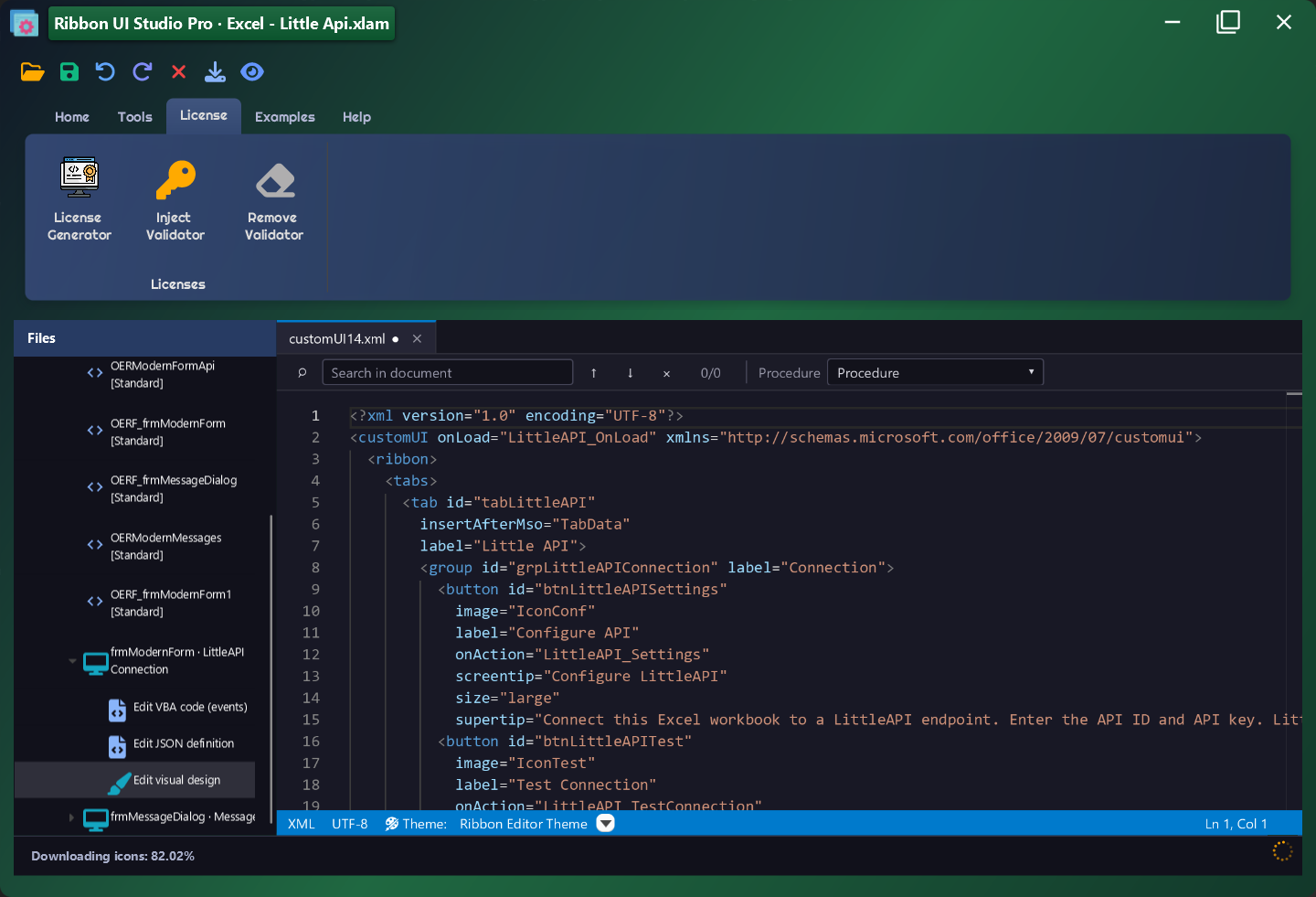
PRO can add licensing protection to an Office add-in and remove it again when it is no longer required. Ribbon UI Studio's own license and the license embedded in an add-in are separate.
Final Bundle Installer generation requires InstallerLab to be installed. Ribbon UI Studio prepares the add-in and deployment project; InstallerLab generates the Bundle Installer.
InstallerLab ↗| Capability | Community | PRO |
|---|---|---|
| RibbonX / VBA editing | ✓ | ✓ |
| Ribbon Visual Designer | ✓ | ✓ |
| Classic native VBA UserForms | ✓ | ✓ |
| imageMso / callbacks / diagnostics | ✓ | ✓ |
| Modern Forms Designer + runtime | — | ✓ |
| Modern VBA-compatible dialogs | — | ✓ |
| Add / remove add-in licensing | — | ✓ |
| Advanced packaging with InstallerLab | — | ✓ |
InstallerLab is a separate application and must be installed to generate the Bundle Installer. installerlab.website ↗
Real v4 interface
These screenshots come directly from Ribbon UI Studio v4 and are published without lossy compression. Each image documents a specific Community or PRO capability. Click to view it at full resolution.
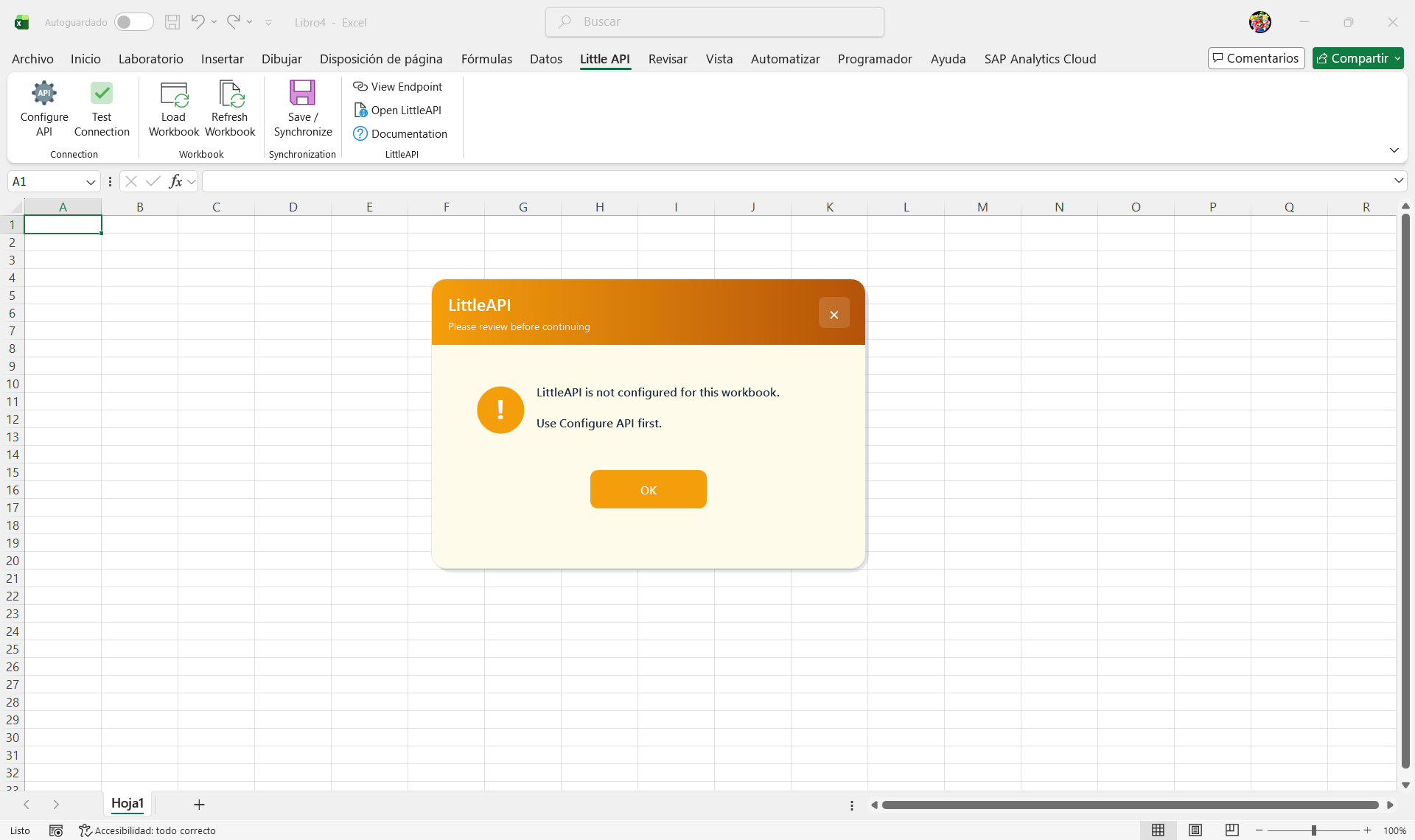
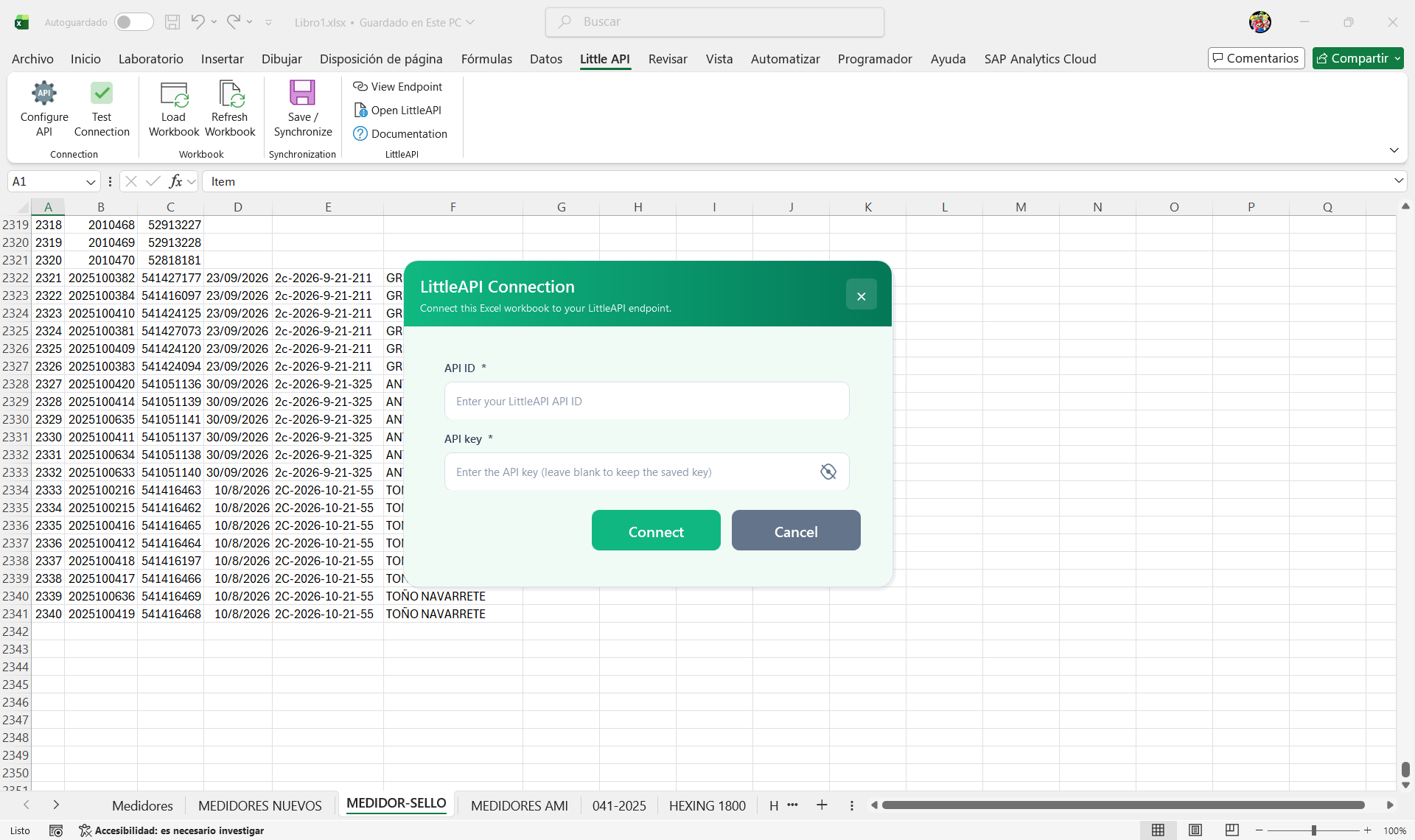
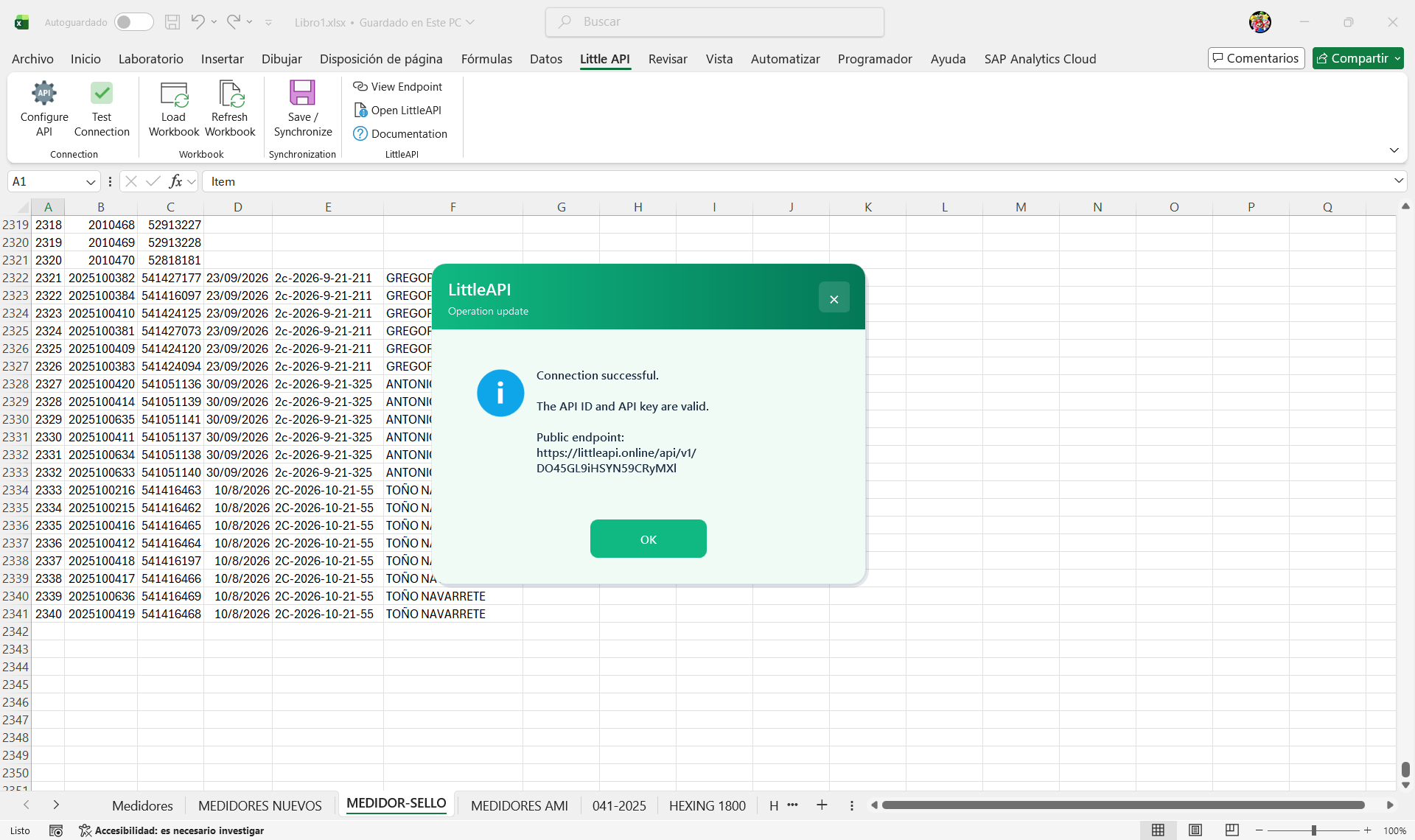
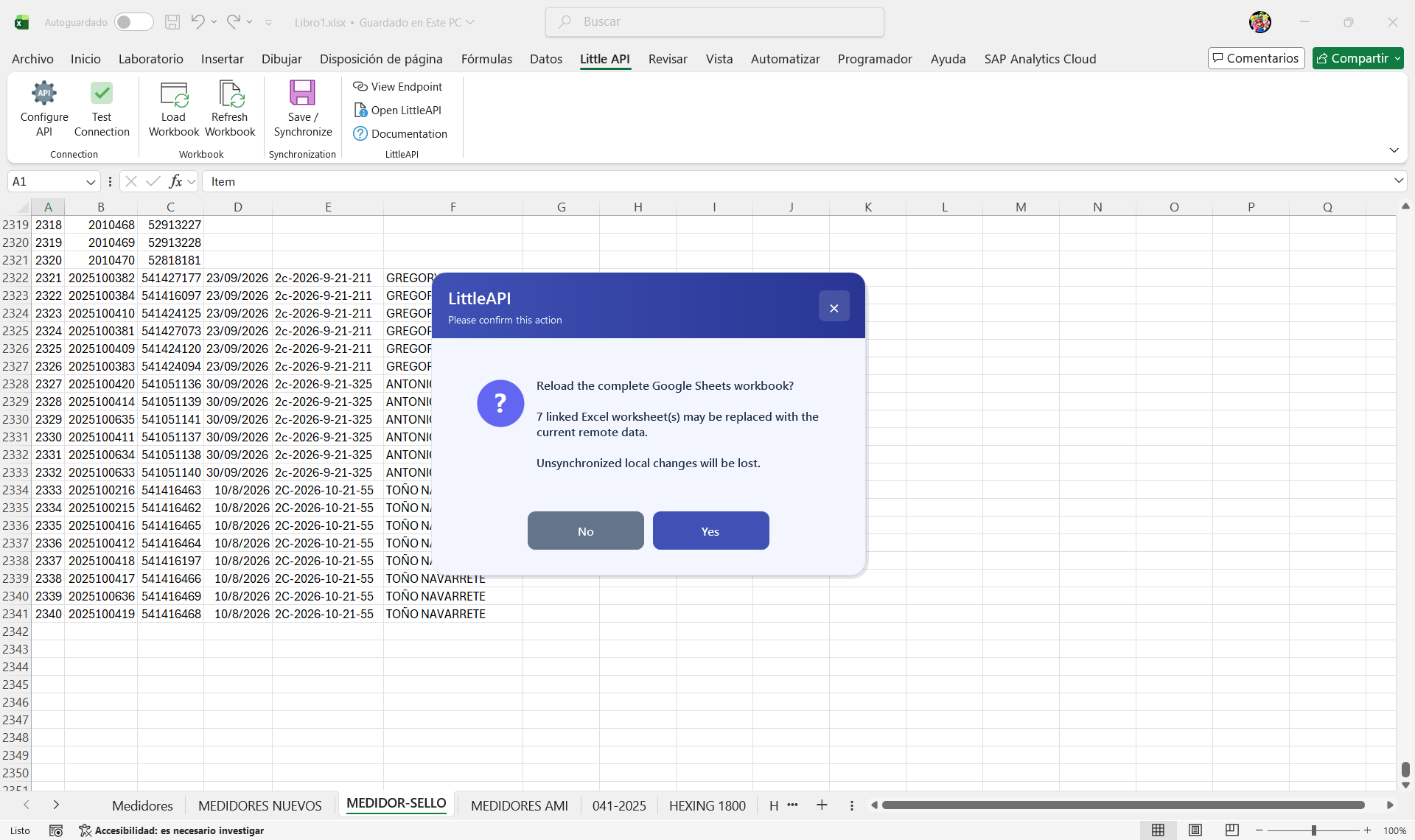
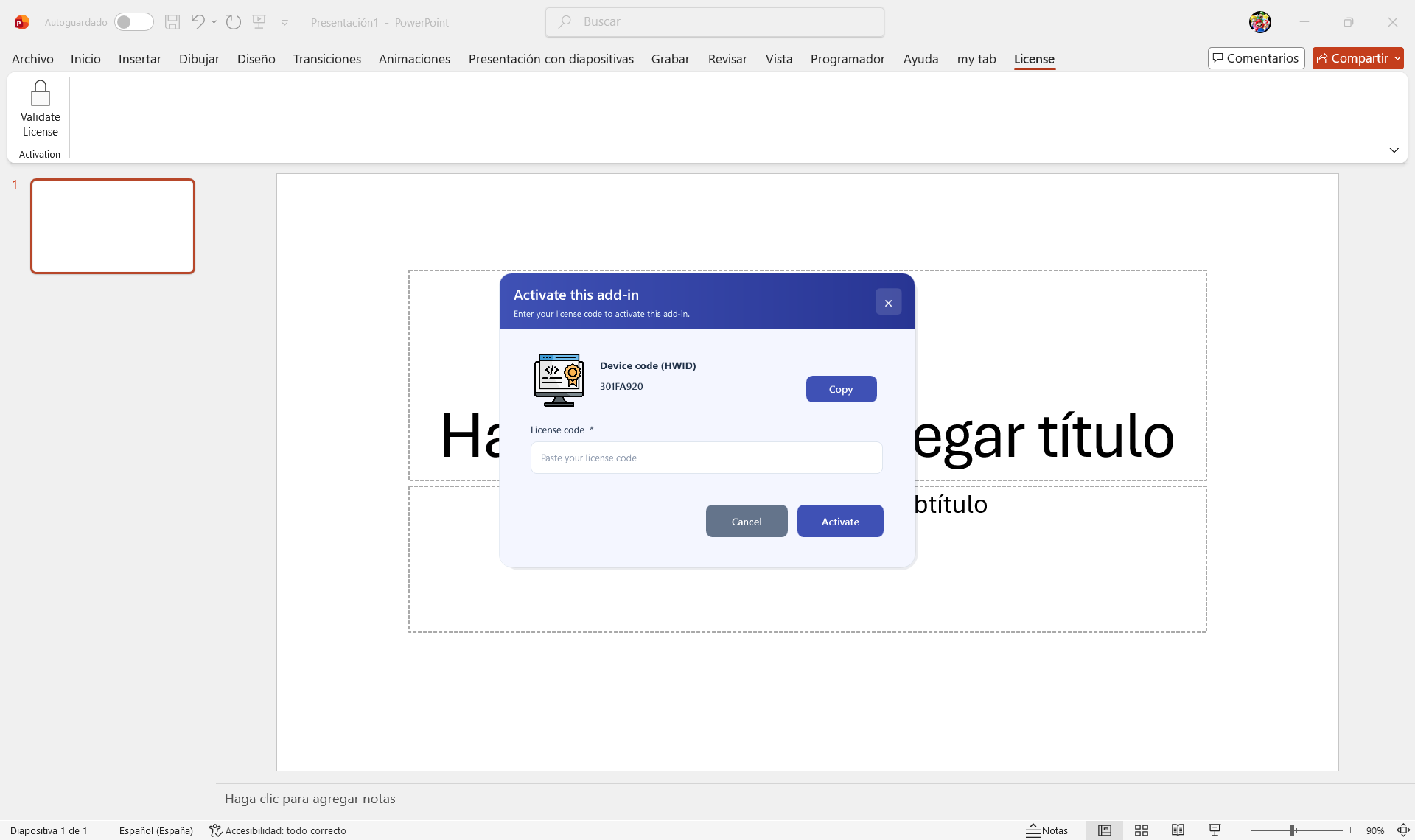
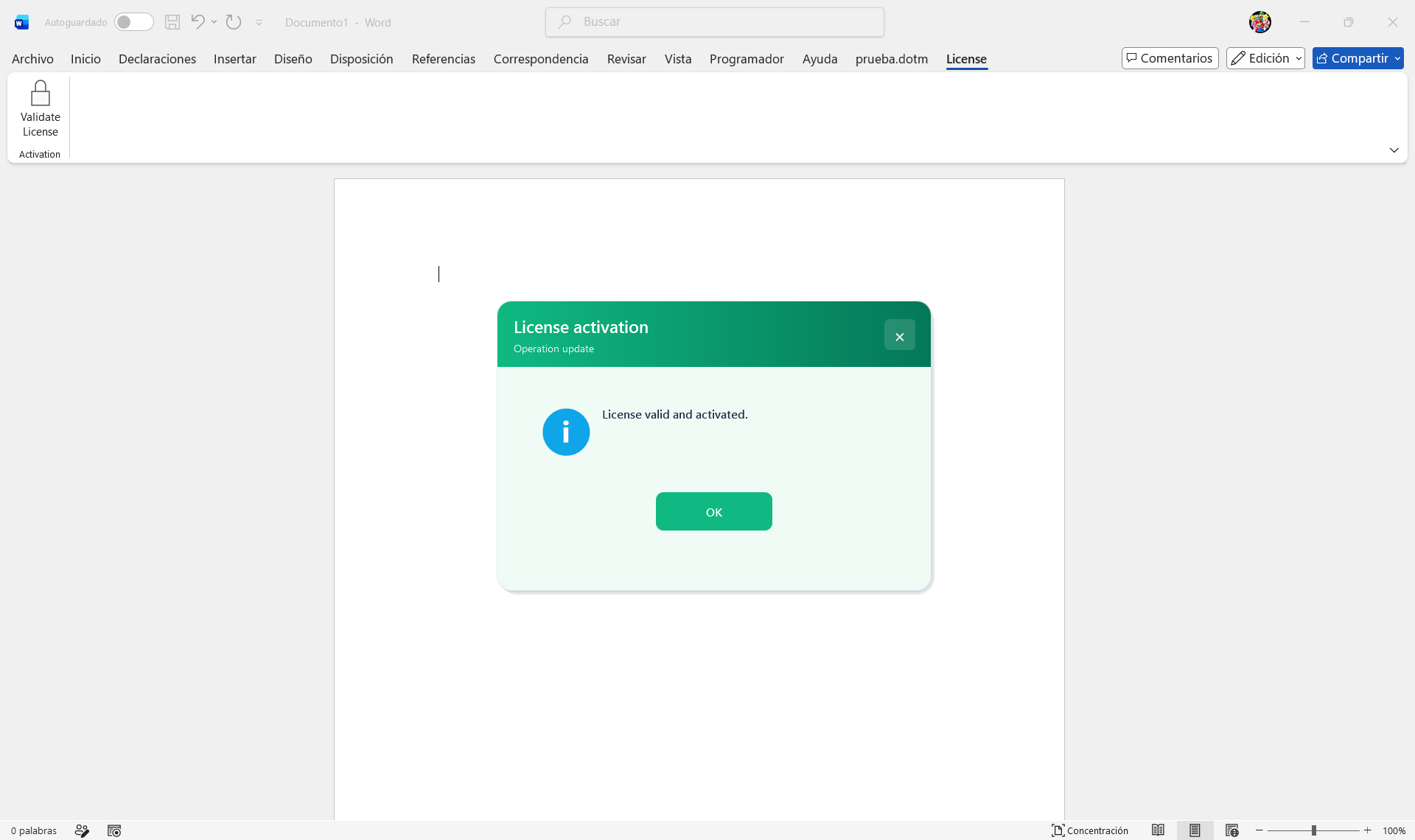
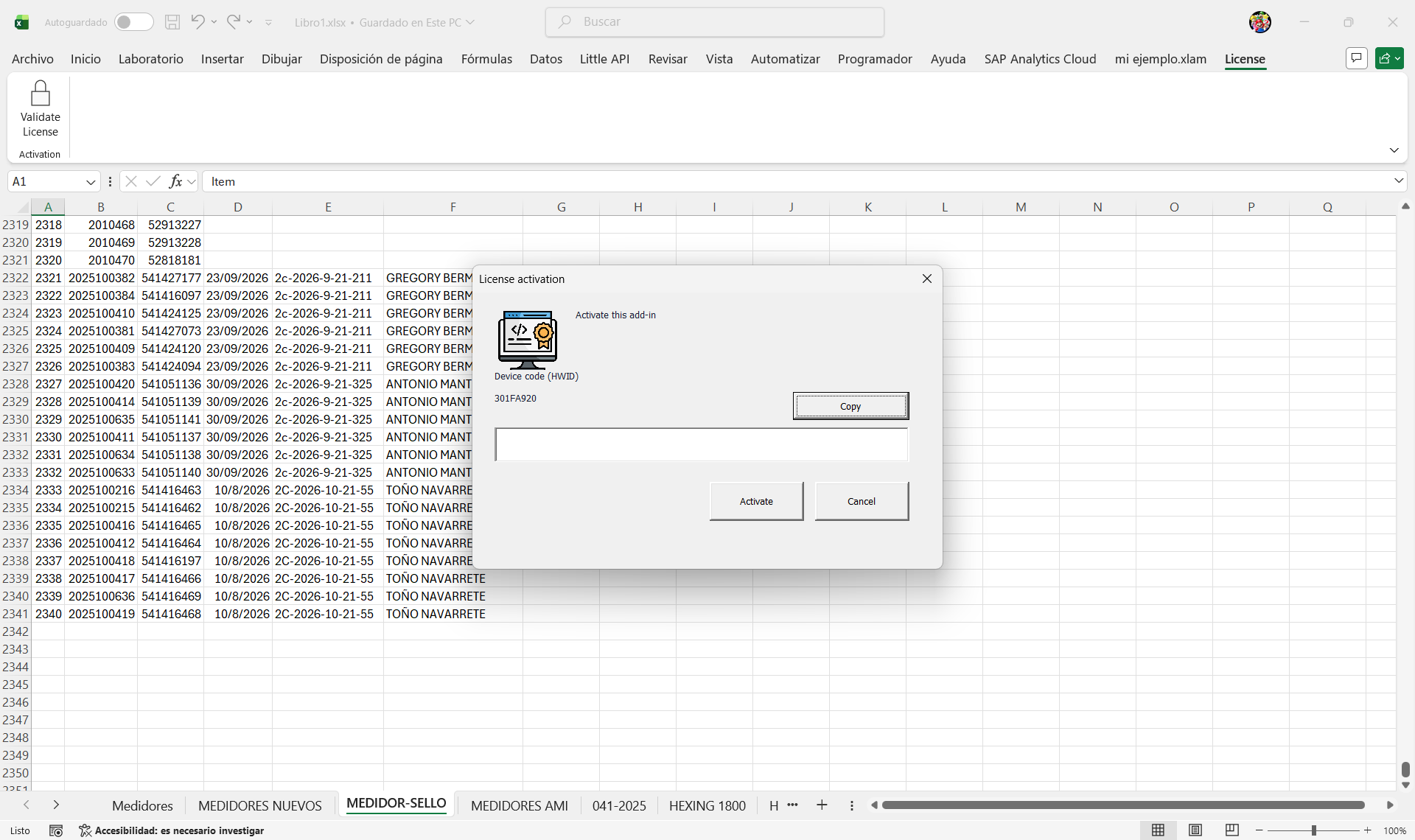
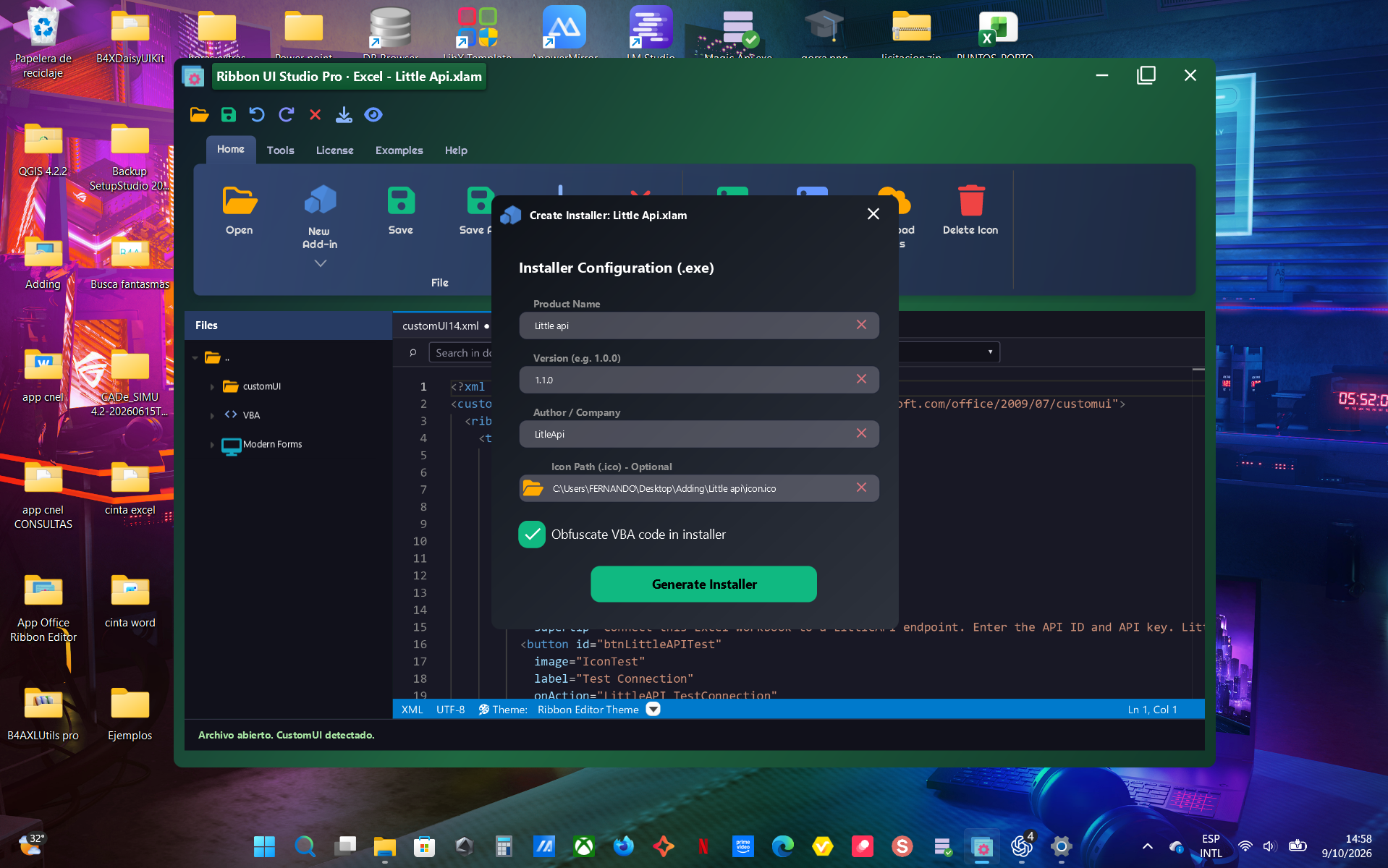
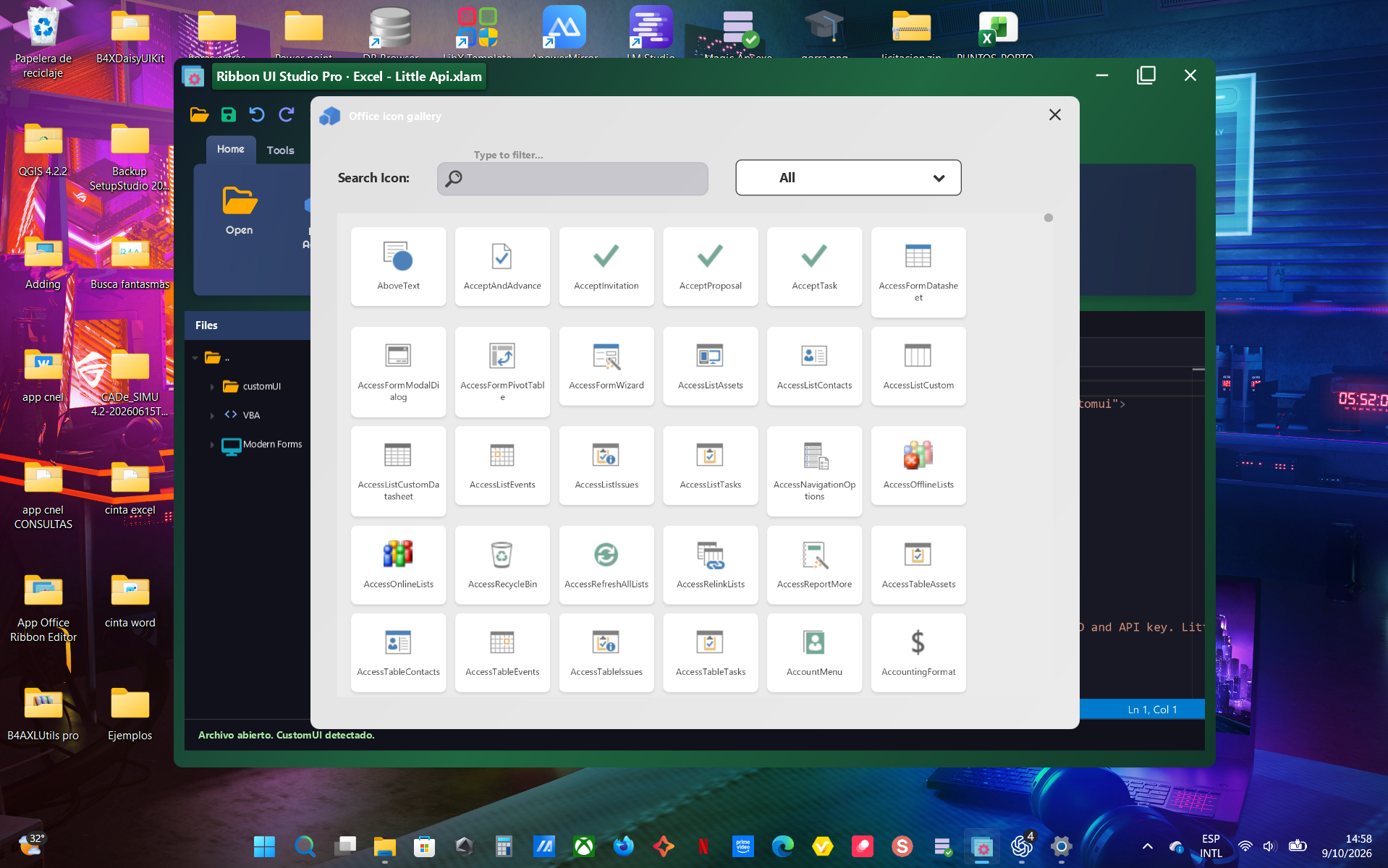
LittleAPI is shown as a real-world add-in built with Ribbon UI Studio capabilities. It does not mean LittleAPI is a required built-in feature of the editor.
Ribbon UI Studio is a Windows desktop application focused on Microsoft Office RibbonX customization. Instead of splitting XML, callbacks, VBA modules, icons and packaging across unrelated tools, it keeps them around the same Office document or add-in.
Open the Office Open XML package and work with customUI/customUI14, images and related content without manually editing the ZIP.
Design the ribbon, check callbacks, edit VBA, create an add-in and prepare its Windows installer from the same product.
Ribbon UI Studio recognizes both common Open XML package locations and can create the correct part when it does not exist yet.
| Schema | Path | Namespace |
|---|---|---|
| Office 2007 | customUI/customUI.xml | 2006/01/customui |
| Office 2010+ | customUI/customUI14.xml | 2009/07/customui |
For VBA callbacks, a macro-free file such as .xlsx, .docx or .pptx must first be saved to a macro-enabled format such as .xlsm, .docm or .pptm.
The editor keeps documents separated and lets you switch between RibbonX XML and VBA modules without mixing their save targets. Built-in templates provide starting points for common ribbons, dynamic menus, galleries and Office-specific workflows.
<customUI xmlns="http://schemas.microsoft.com/office/2009/07/customui">
  <ribbon>
    <tabs>
      <tab id="tabTools" label="My Tools">
        <group id="grpMain" label="Actions">
          <button id="btnRun"
                  label="Run"
                  imageMso="HappyFace"
                  size="large"
                  onAction="RunAction" />
        </group>
      </tab>
    </tabs>
  </ribbon>
</customUI>Ribbon UI Studio can build a ribbon representation without launching Office. The preview interprets tabs, groups, controls, imageMso, embedded images and callback presence so problems can be spotted before final testing.
Checks valid XML and the expected namespace.
Helps detect duplicated or inconsistent identifiers.
Cross-checks callback attributes against available VBA code.
When the file supports macros, Ribbon UI Studio can read VBA modules, open them as editor documents and save back to the correct module. It can also create missing callback signatures from RibbonX attributes.
Public Sub RunAction(control As IRibbonControl)
    MsgBox "Ribbon action executed", vbInformation
End SubThe imageMso gallery uses Office identifiers to help locate and copy the correct name. You can also work with custom images embedded in the Office package and verify that the preview can resolve them.
The creation workflow can prepare the add-in file, a starter ribbon and the RibbonCallbacks module so the project starts from a coherent structure.
| Host | Add-in | Typical use |
|---|---|---|
| Excel | .xlam | Excel tools and automation |
| Word | .dotm | Document templates and tools |
| PowerPoint | .ppam | Presentation tools |
The stable v4.0.0 packaging workflow uses InstallerLab to compile the Windows installer for .xlam, .dotm and .ppam add-ins.
When protection or obfuscation is enabled, the workflow works on a temporary copy so the original add-in is not modified.
These tools do not all target the same problem. Office RibbonX Editor is a strong focused editor; Visual Studio/VSTO is a full development environment; the original Custom UI Editor is a legacy reference. Ribbon UI Studio aims to cover XML + VBA + add-in + distribution in one application.
| Capability | Ribbon UI Studio | Office RibbonX Editor | Office Custom UI Editor | Visual Studio / VSTO |
|---|---|---|---|---|
| Primary focus | RibbonX + VBA + add-in workflow | Focused RibbonX editing | Classic Custom UI editing | .NET Office solution development |
| Standalone app | Yes | Yes | Yes | No, requires Visual Studio |
| Office 2007 / 2010+ customUI | Yes | Yes | Yes | Yes, via Ribbon XML |
| Multi-tab editing | Yes | Yes | Classic workflow | IDE tabs |
| XML validation | Yes | Yes | Yes | IDE/XML tooling |
| Generate callback signatures | Yes | Yes | Yes | Project code |
| Edit VBA modules inside the file | Integrated | Not its primary workflow | Not its primary workflow | VSTO primarily uses C#/VB.NET |
| Host-aware ribbon preview | Integrated | XML/icon focused | Classic XML editor | Visual Designer available with limitations |
| imageMso / custom images | Yes | Yes | Yes | Yes |
| Create .xlam / .dotm / .ppam | Integrated | Primarily edits existing files | Primarily edits existing files | Different add-in/project model |
| Build Windows installer | Integrated with InstallerLab | — | — | Handled with deployment tooling |
| Best fit when… | You want RibbonX, VBA and distribution together | You want a mature focused RibbonX editor | You maintain a legacy workflow | You are building a full .NET Office solution |
Check the exact XML name, confirm the file supports macros and ensure the procedure exists in an accessible standard module.
Validate XML, check the namespace and confirm customUI.xml/customUI14.xml is correctly registered in the package.
Office can block programmatic access to the VBA project. Review Trust Center settings and use trusted documents.
Distinguish imageMso from custom images. Custom images need the correct relationship and resource inside the Office package.
The comparison is based on each project's public documentation and Microsoft's official VSTO documentation.